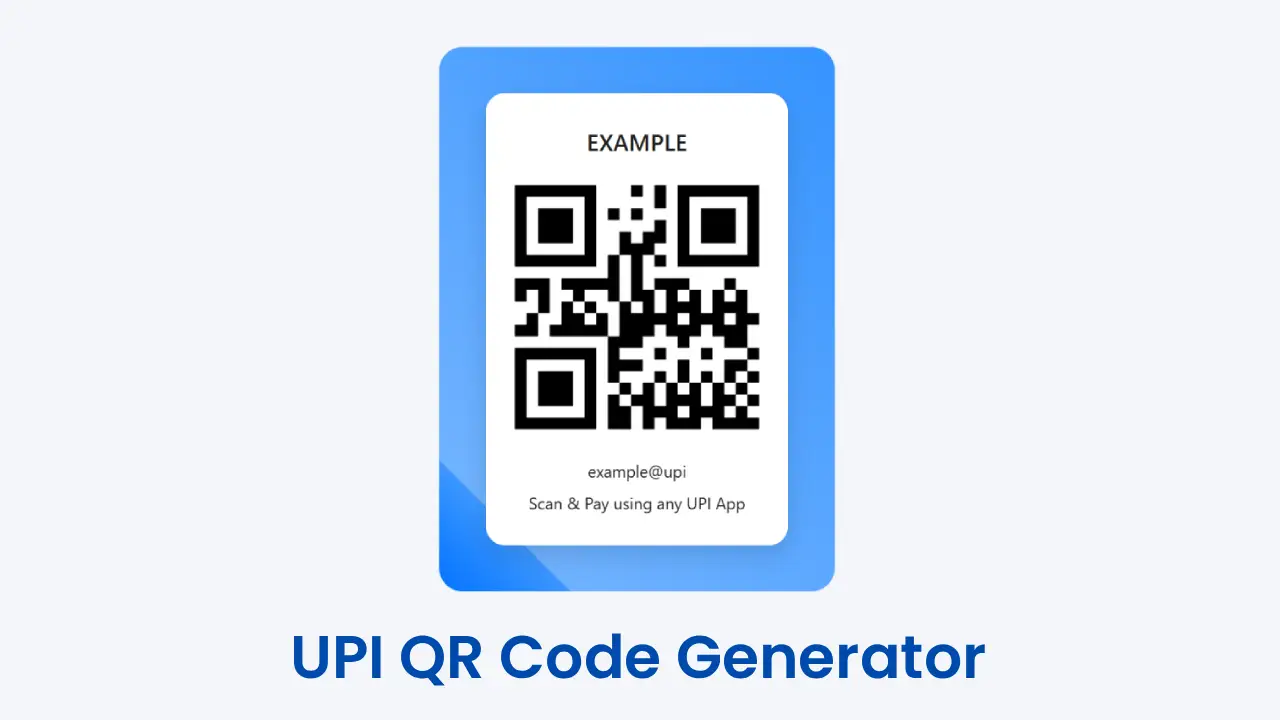
UPI QR Code Generator
EXAMPLE
example@upi
Scan & Pay using any UPI App
Table of Contents
How to Use the UPI QR Code Generator (Complete Step-by-Step Guide for the Beginners)
Nowadays, digital payments have completely transformed the way businesses and individuals accept money in India. With the rise of UPI (Unified Payments Interface), customers no longer need to carry money or remember past bank details. A simple QR code scan is enough to complete a payment with in a seconds.
If you are using the UPI QR Code Generator tool, this detailed guide will explain and help you to how to use it step-by-step, even if you do not have any technical knowledge.
This guide is used for:
- Shop owners
- Freelancers
- Small businesses
- Street vendors
- Online sellers
- Event organizers
You can understand everything in detail.
What is UPI and Why QR Codes Matter?
UPI (Unified Payments Interface) is a real-time payment system developed by the National Payments Corporation of India (NPCI).
It allows you to send money transfers between one bank account to another bank account using mobile apps such as:
- Google Pay
- PhonePe
- Paytm
- BHIM
Instead of typing your UPI ID every time, you can simply scan a QR code and pay at that time. That is why a UPI QR code is most useful for modern businesses.
Overview of the UPI QR Code Generator Tool
This tool allows you to:
- It Generate a UPI QR code instantly
- It will ask you to add merchant name
- It will ask you to enter your UPI ID
- It will ask you to add a fixed amount (optional)
- It will ask you to add a payment note (optional)
- It will ask you to customise gradient borders
- It will ask you to download the QR code as a PNG
- It will ask you to print the QR code directly
It works fully online process and does not need work to go outside for this and any backend or registration.
Step-by-Step Guide: How to Use the UPI QR Code Generator
Let’s go through each step carefully.
Step 1: Enter Your Merchant Name
The first step asks for your Merchant Name.
Example: Gopal Fast Food Center
This name will appear for the above QR code preview.
Why is this important?
- Customers can confirm they are paying for the correct person or not
- It looks more professional, and we can identify easily
- Helps in branding and improves for the growth
If you are a freelancer, you can enter your personal name or business name.
Step 2: Enter Your UPI ID (Mandatory Field)
This is the most important step in the entire process.
Example: GunturuGopal@oksbi
⚠ Without entering a valid UPI ID, the QR code will not be generated.
Important Tips:
- Double-check spelling and correct it if it is wrong.
- Make sure it is active; if not, do it.
- Test once using your own phone and go to the next step.
When people use their phone to scan the QR code by using apps like Google Pay or Phone Pay, the money will be sent to this UPI ID only. The only thing is that people need to open their UPI apps like Google Pay or Phone Pay and make the payment, and the payment money is directly collected by the UPI ID.
When customers scan the QR code using apps like Google Pay or PhonePe, the payment will go directly to this UPI ID.
Step 3: Enter Amount (Optional)
This step is an optional step; if you don’t need you can avoid it.
If you need this step means you need to enter a fixed amount.
Example: 250
What happens if you can enter an amount?
- The amount auto-fills in the customer’s UPI app, and once verified
- The customer only needs to confirm, pay and complete the payment.
What happens if you leave it blank?
- If you want can manually enter any amount
- If you leave it blank, no problem, you can close it
This is useful for:
- Fixed-price products
- Service fees
- Event tickets
- Consultation charges
Step 4: Add a Payment Note (Optional)
This step is an optional step; if you don’t need you can avoid it.
In this step, you can include a small description.
Example: Payment for food
This note appears inside the UPI app transaction details. and helps to identify
It helps in:
- Identifying payments later, we can easily remember if we forget about them.
- Managing business records and keeping the records safe.
- Avoiding confusion, we can save time
Step 5: Choose Border Style
This tool allows you to customise your QR code design.
You can select:
1️⃣ None
Simple clean look without border.
2️⃣ Custom Gradient 1
You can:
- Choose start color step
- Choose the end colour step
- Select direction (left-right, top-bottom, diagonal)
- Adjust border thickness for your comfort
3️⃣ Custom Gradient 2
You can:
- Select 4 different colours in step
- Set angle and check it
- Adjust the thickness for your comfort
If you want to change any setting, the preview updates automatically.
This helps you to create a professional-looking QR code for your shop or business.
Step 6: Check the Live Preview
On the right side, you will see:
- Merchant name option
- QR code option
- UPI ID option
- “Scan & Pay using any UPI App” message
The preview updates on time.
Before downloading or printing, you need to remember these options:
✔ Verify your name
✔ Verify UPI ID
✔ Verify amount
✔ Check border design
Step 7: Download the QR Code as PNG
Once you are done with all the steps as you like, click:
Download PNG Option
This tool will:
- Convert the preview into an image option
- Automatically downloads
- Save as
upi-qr.pngoption will be available
After that, you can then:
- Print it
- Share on WhatsApp
- Upload on social media
- Use in shop banners
- Send to customers
If you want, you can downl;oad high quality file and give it for printing
The UPI QR Code Generator tool is a powerful, simple, and professional solution for the digital payments. Whether you are a shop owner, freelancer, or small business operator, this tool helps you generate a customizable UPI QR code within seconds.
This UPI method is accepted by the Indian National Cooperation, so you can use it happily, and it is safe to use anywhere.
Just enter your details, customise the design, download, and start earning your income through payments.
Other tools:
Author : Gunturu Gopal
Is this tool free to use?
Yes, it is completely free.
Does it store my UPI ID?
No. Everything runs on your browser. No data is stored.
Does it work on mobile?
Yes, it is fully mobile responsive.
Can I print high-quality QR codes?
Yes, the PNG download is suitable for printing.