PDF Workspace
Everything PDF, all in one place
Your complete PDF toolkit.
Convert, organize, edit and extract — entirely in your browser.
All tools
No tools found
Choose files or drop them here
Files are processed on your device, never uploaded.
Choose FilesDraw your signature
Free Online PDF Tools – Merge, Split, Compress, Convert, and Edit PDFs with Rolol PDF Studio
Managing PDF documents should be simple, convenient, and accessible to everyone. Whether you are a student working on assignments, a professional handling business documents, or someone who frequently shares digital files, having the right PDF tools can make everyday tasks much easier.
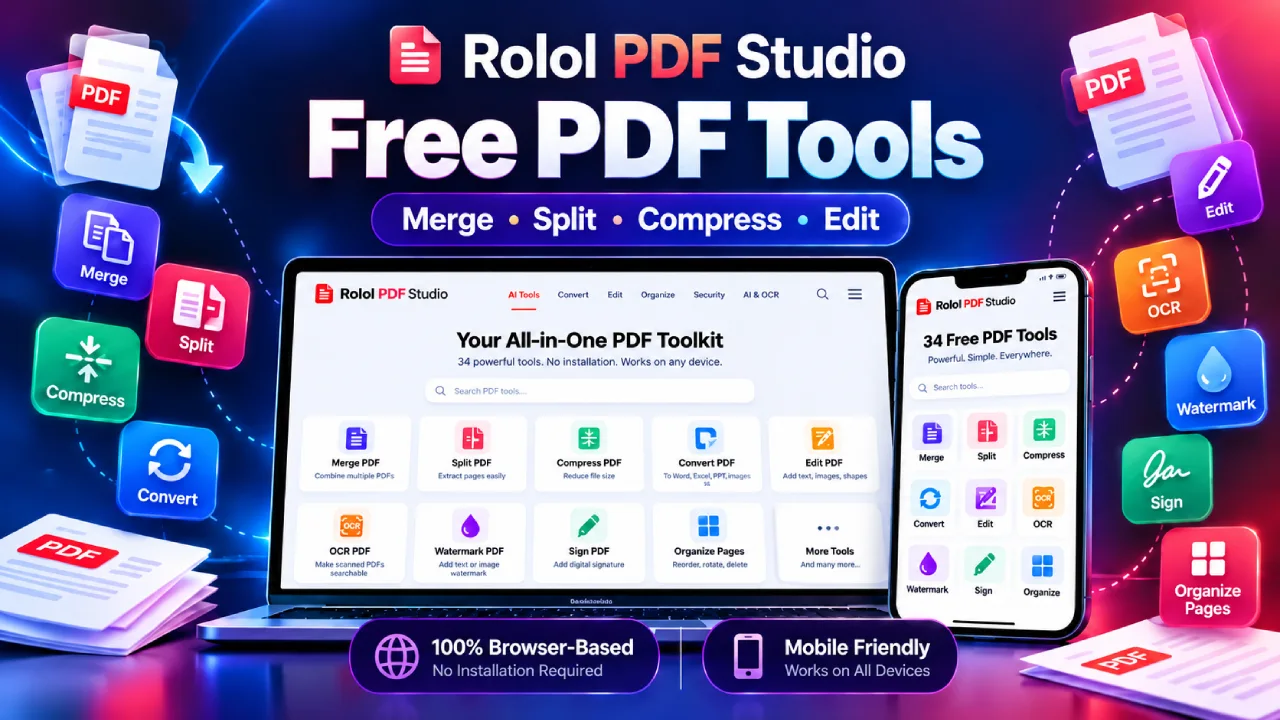
Rolol PDF Studio is an all-in-one collection of 34 free online PDF tools designed to help you manage, organize, convert, edit, and analyze PDF documents directly in your web browser.
Instead of visiting different websites for different PDF operations, Rolol PDF Studio brings essential document management features into one convenient workspace.
Need to combine multiple PDF documents into one file? Want to split a large PDF into smaller sections? Looking for a simple way to convert PDF pages into images or add a watermark to an important document? Rolol PDF Studio offers tools for these tasks and much more.
The platform features a modern, responsive interface designed to work on desktop computers, laptops, tablets, and smartphones.
One of its most important advantages is its browser-based document processing. Your selected PDF files are processed locally in your browser rather than being uploaded to a separate PDF-processing server.
In this guide, we will explore the features of Rolol PDF Studio, explain how its tools work, and help you choose the right PDF operation for your needs.
What Is Rolol PDF Studio?
Rolol PDF Studio is a browser-based PDF management toolkit that combines multiple document utilities into a single interface.
It allows users to perform common PDF operations without installing traditional desktop PDF editing software or creating an account specifically for the tool.
The toolkit includes features for combining documents, organizing pages, converting between PDFs and images, extracting text, adding document elements, and inspecting PDF properties.
With 34 PDF tools available in one place, Rolol PDF Studio can support many routine document workflows.
For example, you might receive several PDF documents that need to be combined into one file. Instead of installing a separate PDF merger, you can open the Merge PDF tool, select your files, and generate a combined document.
Similarly, if a document contains unnecessary pages, you can use the Delete Pages tool to remove them while keeping the remaining pages.
The overall goal is to make PDF management easier by providing practical tools through one organized, mobile-friendly interface.
Why Choose Browser-Based PDF Tools?
Traditional PDF software often requires installation, updates, and storage space on your device. Some applications also require a subscription to access document editing features.
Browser-based PDF tools provide a convenient alternative for many everyday tasks.
No Desktop Software Installation Required
Rolol PDF Studio works through a compatible web browser. There is no need to install a dedicated PDF editing application on your computer.
Simply open the tool’s webpage, select the operation you want to perform, and choose your document.
Multiple PDF Operations in One Place
Rather than switching between several websites, you can access PDF merging, splitting, compression, conversion, editing, and extraction tools from the same dashboard.
This can make repetitive document workflows easier to manage.
Local Document Processing
Rolol PDF Studio is designed to process selected documents in the user’s browser.
This approach avoids the need to transfer the actual PDF file to a remote processing server for supported operations.
The application does load JavaScript libraries and, for OCR, recognition models from external sources. Therefore, an internet connection may still be necessary.
Responsive and Mobile-Friendly Interface
The interface adapts to different screen sizes, making it convenient to access PDF tools from smartphones as well as larger displays.
Users can navigate the tool categories, select documents, configure available settings, and generate output files from a mobile device.
Merge PDF – Combine Multiple PDF Files into One Document
The Merge PDF tool helps you combine multiple PDF documents into a single file.
This feature is especially useful when information is spread across several separate documents.
For example, students may need to combine multiple assignment sections into one PDF before submission. Office employees may want to combine several reports, and businesses may need to organize related documents into one file.
With Rolol PDF Studio, you can select multiple PDFs and process them into a combined document.
A merged PDF can be easier to share, store, print, and organize than several individual files.
The Merge PDF tool is particularly useful for creating consolidated reports, combining scanned documents, and preparing complete document packages.
Split PDF – Divide Large PDF Documents into Smaller Files
Not every PDF needs to remain as one large document.
Sometimes you may want to separate chapters, extract different sections, or divide a long document into smaller files.
The Split PDF tool allows you to divide a PDF using page ranges or custom groups.
For example, you might want pages 1–3 in one document and pages 4–8 in another.
Instead of manually recreating the PDF, you can specify the relevant page groups and generate separate files.
This feature is helpful for dividing educational materials, separating reports, organizing documents by topic, and preparing selected information for sharing.
Splitting a PDF can also make individual sections easier to locate and manage.
Organize PDF Pages – Rearrange Your Documents
The Page Organizer is one of the most useful features in an all-in-one PDF editor.
It helps you modify the structure of a PDF by rearranging, duplicating, rotating, or removing pages.
For example, imagine scanning a set of documents and discovering that several pages are in the wrong order.
Instead of scanning everything again, you can use the Page Organizer to adjust the page sequence.
Rolol PDF Studio also provides dedicated tools for extracting selected pages, deleting unwanted pages, reversing page order, and rotating pages.
These functions are helpful when preparing presentations, combining scanned records, arranging educational documents, or correcting incorrectly ordered files.
Having control over page organization makes it easier to prepare professional and readable PDF documents.
Compress PDF – Reduce PDF File Size
Large PDF documents can be difficult to share, particularly when they contain scanned images or high-resolution graphics.
The Compress PDF tool is designed to reduce document size by converting PDF pages into compressed images.
Rolol PDF Studio provides adjustable image quality and resolution settings, allowing users to choose between visual quality and potential file-size reduction.
Lower compression quality settings may produce smaller output files, while higher quality settings can help preserve more visual detail.
However, compression results depend on the original document.
An image-heavy PDF may become smaller, while a text-based PDF could actually increase in size.
Important: This compression method converts pages into images. Searchable text, hyperlinks, selectable text, and some accessibility features may be lost.
For that reason, it is best suited to documents where preserving the visual appearance is more important than retaining the original text structure.
Always review the compressed PDF before sharing or replacing the original document.
Images to PDF – Convert JPG, PNG, and WebP Images
Images are commonly used for receipts, study notes, screenshots, and scanned documents.
However, sharing many individual image files can be inconvenient.
The Images to PDF tool allows users to combine JPG, PNG, and WebP images into a PDF document.
For example, if you have photographed multiple pages of handwritten notes, you can organize those images into a single PDF.
The tool also provides page-size and margin settings.
You can choose to fit images to their natural dimensions or use a supported paper size such as A4 or US Letter.
This feature is useful for collecting scanned notes, organizing screenshots, combining receipts, and preparing image-based documents.
PDF to JPG, PNG, and WebP Converter
Sometimes PDF pages are more useful as individual image files.
Rolol PDF Studio includes three dedicated image conversion tools: PDF to JPG, PDF to PNG, and PDF to WebP.
Each format serves a different purpose.
PDF to JPG
JPG is a widely supported image format suitable for photographs, document previews, and general image sharing.
The PDF to JPG tool converts selected PDF pages into JPG images with configurable resolution and quality settings.
It can be useful when creating document previews or sharing individual pages as images.
PDF to PNG
PNG is commonly preferred when maintaining crisp visual details is important.
The PDF to PNG tool can be useful for exporting diagrams, charts, illustrations, and text-heavy page images.
PDF to WebP
WebP is a modern image format supported by many browsers and web platforms.
The PDF to WebP tool converts selected PDF pages into WebP images, with configurable quality settings.
This can be useful when preparing visual assets for websites and online content.
The results of all three conversions depend on the original PDF, selected resolution, and image format.
PDF to Text – Extract Written Content
Copying text from a PDF is not always convenient, especially when the document contains many pages.
The PDF to Text tool extracts readable text from PDFs that already contain a text layer.
This feature can help users transfer document content into text editors, review written information, or prepare content for further analysis.
It is particularly helpful for extracting text from reports, articles, educational documents, and other digitally created PDFs.
However, PDFs made entirely from scanned images may not contain selectable text.
For those documents, Optical Character Recognition (OCR) is generally more appropriate.
OCR Scanned PDF – Recognize Text from Scanned Documents
Optical Character Recognition, commonly called OCR, is a technology that attempts to identify written characters within images.
The OCR Scanned PDF tool allows users to recognize text from scanned PDF pages.
For example, a scanned document might visually contain words but have no selectable text layer.
OCR can analyze the page images and produce recognized text that can be saved separately.
Rolol PDF Studio supports OCR language selection for English, Telugu, Hindi, Tamil, Kannada, and Malayalam.
This can be particularly useful when working with regional-language documents.
OCR accuracy depends on factors such as scan resolution, handwriting or font style, image clarity, and document layout.
Recognition errors are possible, so extracted text should always be checked before important use.
OCR processing may also take longer than ordinary PDF editing because each selected page must be analyzed.
PDF to JSON and Search PDF Text
Rolol PDF Studio also includes tools for users who need to examine document content more closely.
The PDF to JSON feature exports page text and positional information into a structured JSON format.
This can be useful for developers, researchers, and users working with structured document data.
The Search PDF Text tool helps locate specific words or phrases across a document’s existing text layer.
Instead of manually reading every page, you can search for relevant information.
These tools are particularly useful when reviewing lengthy documents, checking repeated terms, and working with text-based PDFs.
Scanned documents may require OCR before their content can be searched effectively.
Add Text to PDF Documents
The Add Text feature allows you to place new text on selected PDF pages.
You can configure the text content, font size, page selection, and available positioning options.
For example, you might want to add a reference label, document status, or short instruction to a page.
The tool places new text as an overlay.
It does not directly rewrite or erase existing text already embedded in the document.
The standard text font is primarily suitable for basic Latin characters. Some regional-language scripts may require additional font support.
For correcting the original words within an existing PDF, a specialized PDF content editor may be necessary.
Add a Watermark to PDF
Watermarks are often used to identify a document’s purpose, status, or ownership.
The Watermark PDF tool allows you to add diagonal text across selected pages.
Common watermark examples include “CONFIDENTIAL,” “DRAFT,” “SAMPLE,” and “INTERNAL USE.”
You can adjust settings such as text size, opacity, and page selection.
A light watermark can preserve readability while still displaying important document information.
Watermarks are useful for internal reports, draft documents, sample materials, and business records.
However, ordinary PDF watermarks should not be considered a strong security measure because they may be removable using specialized software.
Add Page Numbers, Headers, and Footers
Long documents are easier to navigate when pages are clearly numbered.
Rolol PDF Studio includes an Add Page Numbers tool that can place page numbers in supported positions.
You can also configure the numbering sequence and prefix.
The Header & Footer tool lets you add repeating information to pages.
For example, a business may want its document title at the top and a short confidentiality notice at the bottom.
These features are helpful when preparing reports, academic notes, project documents, and other multipage PDFs.
Consistent page numbering and document labels can improve readability and organization.
Add Images and Sign PDF Documents
The Add Image feature allows users to place an image, logo, or graphic onto selected PDF pages.
This can be useful for adding visual branding or supporting illustrations to a document.
Rolol PDF Studio also includes a Sign PDF tool.
You can draw a signature and place its visible image on a selected page.
This is convenient for documents that require a simple handwritten-style signature.
However, a drawn signature image is not the same as a certificate-based digital signature.
Documents requiring cryptographic verification, identity validation, or legally specified digital-signature standards may require dedicated signing software.
Always confirm the signature requirements of the organization receiving your document.
Crop, Resize, Rotate, and Adjust PDF Pages
PDF documents can contain different page sizes, orientations, and margins.
Rolol PDF Studio includes tools for adjusting how pages appear.
The Crop PDF tool changes the visible crop region of a document. This can help hide unwanted margins or focus on a particular page area.
Cropping does not securely erase hidden information. Content outside the crop area may still remain within the PDF.
The Resize Pages tool allows you to fit pages to supported paper sizes, including A4, A5, US Letter, and US Legal.
The Rotate Pages tool helps correct sideways or upside-down pages.
These features are particularly useful for scanned documents, incorrectly formatted PDFs, and files prepared for printing.
Convert PDF to Grayscale or Black and White
Not every document needs full-color pages.
Rolol PDF Studio includes Grayscale PDF and Black & White PDF tools.
Grayscale conversion transforms page images into shades of gray.
Black-and-white conversion creates high-contrast monochrome output using an adjustable threshold.
These features can help prepare certain documents for monochrome printing, simplify visual presentation, or create consistent-looking pages.
However, both operations recreate PDF pages as images.
This means selectable text, links, and other interactive elements may be lost.
Always inspect the resulting document to ensure that text and diagrams remain readable.
Edit PDF Metadata and Inspect Document Details
PDF files can contain descriptive information known as metadata.
Common metadata fields include document title, author, subject, and keywords.
The Edit Metadata tool lets you update supported document information.
Rolol PDF Studio also provides a Clear Metadata tool for removing common metadata fields.
Clearing these fields does not guarantee that every form of personal information, embedded metadata, or sensitive document content has been removed.
The PDF Inspector provides useful technical information about a document, including page counts and selected file properties.
These utilities help users understand and organize their PDF files more effectively.
Fill and Flatten Interactive PDF Forms
Interactive PDF forms are commonly used for applications, registrations, surveys, and administrative documents.
The Fill PDF Forms tool supports compatible interactive PDF fields, including text fields, checkboxes, and choice fields.
This can make completing supported forms easier without requiring a dedicated desktop application.
The Flatten PDF Forms feature can convert interactive form values into non-editable page content.
Flattening is useful when you want the completed form to preserve its entered values without allowing further ordinary field editing.
Form compatibility depends on the structure of the original PDF. Some specialized forms, including certain XFA-based documents, may not be supported.
Compare PDFs, Extract Attachments, and Export Bookmarks
Rolol PDF Studio includes several additional utilities for advanced document tasks.
The Compare PDFs tool compares extracted text from two PDF files.
This can help identify textual differences between document versions.
The comparison is approximate and does not provide a complete visual comparison of page layouts, scanned images, or embedded graphics.
The Extract Attachments tool allows users to save files that are actually embedded within a PDF.
The Extract Bookmarks feature can export supported PDF outline information into JSON.
These tools are useful when reviewing document revisions, accessing embedded resources, or analyzing document navigation structures.
How to Use Rolol PDF Studio
Using Rolol PDF Studio is straightforward, even if you have little experience with PDF editing.
Follow these steps:
- Open Rolol PDF Studio: Visit the webpage containing the all-in-one PDF toolkit using a compatible browser.
- Choose a PDF tool: Browse the available categories or use the tool search feature to find the operation you need.
- Select your files: Upload or choose the PDF or supported image files from your device. The files remain in your browser for processing.
- Configure the settings: Depending on the selected tool, choose options such as page range, resolution, quality, position, or text.
- Start processing: Run the selected operation and allow your browser to complete the task.
- Review and download: Check the available output and save the processed file to your device.
Some operations may produce multiple output files or a ZIP archive.
Processing time depends on the size and complexity of the input documents, the chosen operation, and your device’s available memory and processing power.
Mobile-Friendly PDF Tools for Android and iPhone
Many people now manage documents primarily through their smartphones.
Students may need to submit assignments from their phones, while professionals may receive reports through messaging apps or email.
Rolol PDF Studio uses a responsive interface designed to adapt to smaller screens.
Its mobile-oriented layout, navigation controls, and tool selection system make it easier to access PDF features on supported smartphone browsers.
The tool can be used without installing a separate Android or iPhone application.
However, browser compatibility, available memory, and supported file-handling features vary between devices.
Large PDFs and demanding operations such as OCR may perform better on a desktop computer or a smartphone with sufficient memory.
Multilingual PDF Tools for Indian Users
Rolol PDF Studio provides interface language options for six languages: English, Telugu, Hindi, Tamil, Kannada, and Malayalam.
This makes the toolkit more accessible to people who prefer navigating digital tools in their regional language.
Language support is especially useful for students, local businesses, and everyday users who may be less comfortable with English-only interfaces.
The main navigation and tool names are available in multiple languages, although some advanced settings and explanatory labels may remain in English.
Interface translation is also different from document-language support.
For example, choosing Telugu as the interface language does not automatically translate an English PDF into Telugu.
Likewise, adding text in some regional scripts may require additional embedded fonts.
The goal of multilingual support is to make the PDF management experience easier to understand and navigate.
Privacy and Local PDF Processing
Privacy is an important consideration when working with personal documents, academic records, or business information.
Rolol PDF Studio is designed around browser-side PDF processing.
For supported operations, selected PDF documents are processed locally using JavaScript libraries instead of being sent to a remote document-processing service.
This means you do not need to upload the document itself to a separate PDF conversion server.
However, the webpage may still request external resources such as JavaScript libraries, icons, or OCR language data.
Therefore, browser-based processing should not be confused with a completely offline application.
For sensitive files, use a trusted device, keep your browser updated, and confirm that the website hosting the tool is trustworthy.
Avoid processing confidential documents on shared or untrusted devices.
Who Can Benefit from Rolol PDF Studio?
Rolol PDF Studio is designed for a wide variety of users.
Students and Teachers
Students can merge notes, split study materials, convert scanned pages into PDFs, and extract text from compatible documents.
Teachers may find page organization, document conversion, and watermark features useful when preparing learning materials.
Office Professionals
Office users can combine reports, add page numbers, organize PDF pages, and create consistent document layouts.
Tools such as PDF Inspector and Compare PDFs can also help with routine document review.
Freelancers and Small Businesses
Freelancers frequently exchange proposals, project reports, agreements, and other PDF documents.
Tools for combining documents, adding logos, applying watermarks, and adjusting page sizes may simplify document preparation.
Researchers and Content Creators
Researchers may benefit from text extraction, OCR, PDF search, and structured JSON export.
Content creators can convert PDF pages into images for previews, reference materials, and other permitted uses.
Everyday Users
You do not need to be a technical expert to benefit from PDF tools.
Whether you are organizing personal notes, rotating scanned pages, or converting images into a PDF, Rolol PDF Studio provides convenient options in one place.
Tips for Getting Better Results with PDF Tools
The quality of a processed PDF depends on the original file and the operation you choose.
For best results, start with a clear, readable document.
If you are converting scanned pages, use images with sufficient resolution and good contrast.
For OCR, avoid blurry images, heavy shadows, and tilted text wherever possible.
When compressing a PDF, balance file size against image quality. Excessive compression can make small text difficult to read.
Use PNG when you need crisp image output, JPG when photographic content and file size matter, and WebP when preparing compatible web images.
Before editing an important PDF, keep a copy of the original.
After processing, verify that the output contains the expected pages, readable text, and correct formatting.
These simple precautions can help prevent document-quality problems and accidental information loss.
Frequently Asked Questions About Rolol PDF Studio
Is Rolol PDF Studio free to use?
Yes. Rolol PDF Studio provides its available browser-based PDF tools without requiring a paid subscription to access the toolkit.
You can choose an operation, select your document, and process supported files in your browser.
Do I need to install PDF software?
No dedicated desktop PDF application is required.
Rolol PDF Studio works in a compatible browser, allowing you to access its features directly from the webpage.
Some external JavaScript resources must load before processing can begin.
Are my PDF files uploaded to a server?
The toolkit is designed to process selected documents locally in your browser instead of uploading the files to a dedicated PDF-processing server.
Can I merge multiple PDFs into one document?
Yes. The Merge PDF tool combines multiple selected PDF files into a single document.
This is useful when organizing assignments, combining reports, or preparing several related files for sharing.
Can I compress PDF files without losing quality?
PDF compression involves trade-offs.
Rolol PDF Studio’s compression feature converts pages into compressed images, so some visual quality may be reduced.
Text selection, links, and other document features may also be lost.
The resulting file is not guaranteed to be smaller than the original.
Can I convert a PDF into JPG or PNG images?
Yes. Rolol PDF Studio includes PDF to JPG, PDF to PNG, and PDF to WebP conversion tools.
You can export selected PDF pages as images using supported quality and resolution settings.
Can I extract text from scanned PDFs?
Yes. The OCR Scanned PDF tool attempts to recognize text contained in scanned document images.
OCR supports several language options, including English and selected Indian languages.
Recognition accuracy depends on the clarity and quality of the original document.
Does Rolol PDF Studio support mobile phones?
Yes. Its responsive interface is designed for use on smartphones, tablets, laptops, and desktop computers.
Actual processing performance depends on the browser, device memory, and document complexity.
Can I add a signature to a PDF?
Yes. The Sign PDF tool allows you to draw a visible signature and place it on a selected PDF page.
This is an image-based signature, not a certificate-backed digital signature.
Can I edit existing text inside a PDF?
The Add Text tool can place new text over a PDF page.
However, it does not directly modify or remove the existing text objects within the original document.
Advanced editing of embedded PDF content requires specialized functionality.
Can I convert PDF files into Word or Excel documents?
Direct PDF-to-Word and PDF-to-Excel conversion are not included in this version of Rolol PDF Studio.
The available conversion features focus on images, text, and structured JSON extraction.
Can I password-protect or securely redact a PDF?
Password protection and permanent secure redaction are not included in the current toolkit.
Cropping, covering, or hiding information visually does not permanently remove sensitive content from a PDF.
For confidential information removal, use a dedicated secure-redaction application.
Why does PDF processing sometimes take longer?
Processing speed depends on the number of pages, image resolution, file complexity, and device performance.
OCR, image-based compression, and high-resolution conversions can require additional processing time and memory.
Selecting fewer pages or using a lower image resolution may improve performance.
Does Rolol PDF Studio work completely offline?
Not necessarily.
PDF operations are designed to run locally after the required application resources have loaded.
However, the tool depends on external JavaScript libraries, and OCR may require language model downloads.
An internet connection is therefore recommended.
What makes Rolol PDF Studio different from a basic PDF converter?
A basic PDF converter usually focuses on changing files from one format to another.
Rolol PDF Studio combines 34 document-management operations, including merging, splitting, page organization, conversion, text extraction, OCR, visual editing, metadata utilities, and form handling.
Its all-in-one design reduces the need to switch between different PDF utility pages.
Simplify Your PDF Workflow with Rolol PDF Studio
PDF documents are an essential part of modern education, business, communication, and digital record management.
Having access to convenient PDF tools can make everyday document tasks easier, whether you need to combine files, organize pages, convert formats, or extract information.
Rolol PDF Studio brings 34 free online PDF tools together in one browser-based workspace.
With its responsive design, multilingual interface, practical document features, and local file processing approach, it provides a convenient option for users who want to handle common PDF tasks without installing dedicated software.
From PDF merging and page organization to image conversion, OCR, signatures, and metadata management, the toolkit offers useful capabilities for different document workflows.
For best results, select the tool that matches your task, review the available settings, and verify your output before using it for important purposes.
Explore Rolol PDF Studio and manage your PDF documents from one convenient online workspace.