MP3 Cutter MAX
Fast browser audio editor
Drop your audio here
MP3, WAV, M4A, AAC, OGG and FLAC • processed on your device
Editing an audio file should not require complicated software, expensive subscriptions, or technical knowledge. With an online MP3 cutter, you can quickly cut unwanted parts of an audio file, create a ringtone, extract a favorite section of a song, trim a voice recording, or prepare a short audio clip directly from your web browser.
Our MP3 Cutter is designed to make audio editing simple for beginners while still providing advanced controls for users who need more precision. You can upload an audio file, visually select the section you want, preview the result, apply useful audio adjustments, and export the edited file.
Everything is designed to work directly in your browser, making the process fast and convenient.
Whether you want to create a ringtone, shorten a podcast recording, trim an interview, edit a music file, remove silence, or prepare audio for social media, an online MP3 cutter can help you complete the task in just a few steps.
What Is an MP3 Cutter?
An MP3 cutter is an audio editing tool that allows you to select and remove specific portions of an audio file.
For example, imagine you have a five-minute audio recording but only need a thirty-second section. Instead of using a full desktop audio editing application, you can open the file in an MP3 cutter, select the exact start and end points, and export the selected portion.
An MP3 cutter is commonly used for tasks such as:
- Creating mobile ringtones
- Trimming songs
- Cutting voice recordings
- Removing unwanted introductions or endings
- Extracting audio clips
- Shortening podcasts
- Creating notification sounds
- Preparing audio for videos
- Removing silence from recordings
- Creating short music samples
A good online MP3 cutter should also provide accurate waveform controls so users can visually identify the section they want to keep.
Free Online MP3 Cutter
Our free online MP3 cutter gives you an easy way to edit audio without installing large programs on your computer.
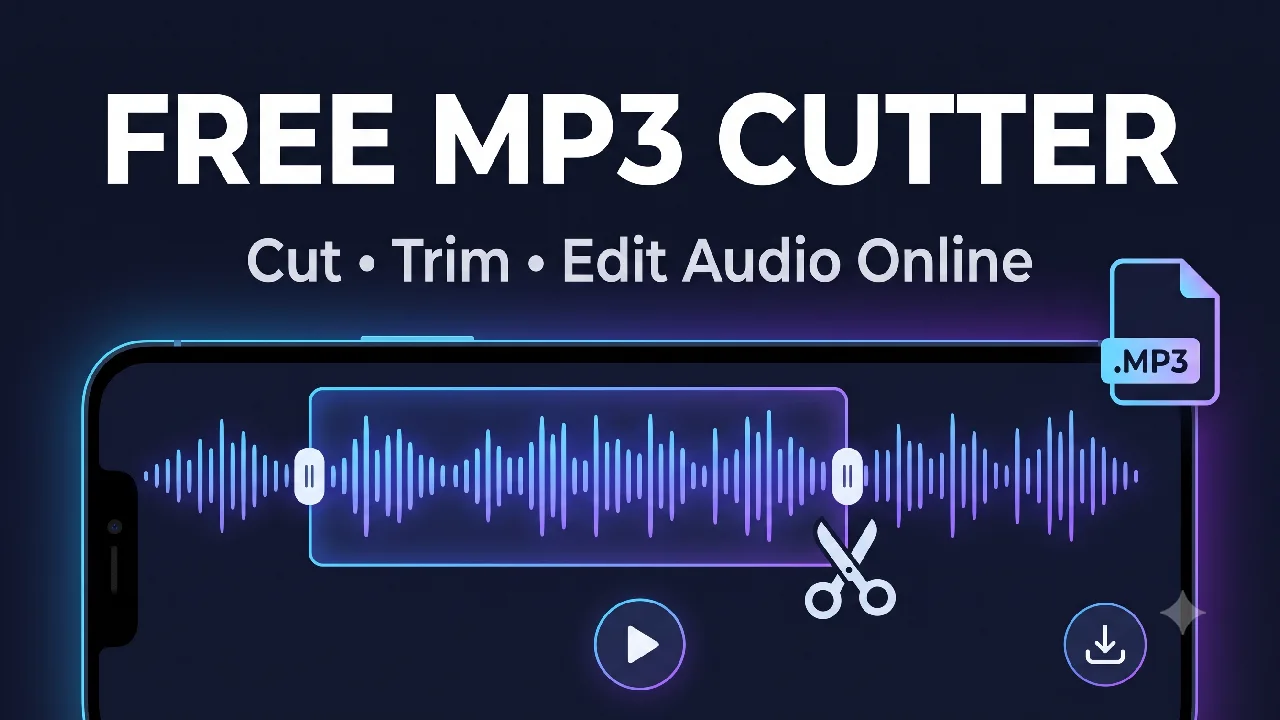
Simply choose an audio file from your device and the editor will display the audio waveform. You can then select the part you want by adjusting the start and end positions.
The visual waveform makes audio editing much easier because you can see where sound begins, where silent areas appear, and where different parts of the recording change.
Once your selection is ready, preview the result and export the edited audio.
The entire workflow is designed to feel similar to using a mobile audio editing app.
How to Cut an MP3 File Online
Cutting an MP3 file is simple.
Step 1: Choose Your Audio File
Click the Choose Audio button and select an audio file from your device.
Depending on your browser and the audio format, the tool can work with common audio formats such as MP3 and WAV, along with several other browser-supported formats.
After selecting the file, the audio will be loaded into the editor.
Step 2: View the Audio Waveform
The waveform gives you a visual representation of the audio.
Quiet sections appear smaller, while louder sections usually appear larger.
This makes it easier to identify:
- Song introductions
- Voice sections
- Silence
- Music transitions
- Chorus sections
- Outro sections
You can zoom into the waveform when you need more precise editing.
Step 3: Select the Start Point
Choose where the final audio should begin.
You can move the selection handle or enter a precise starting time.
For detailed editing, you can also use small time adjustments to move the start point by a few milliseconds.
Step 4: Select the End Point
Move the end marker to the location where you want the audio clip to finish.
The selected duration will update automatically.
This helps you create clips with a specific length, such as:
- 15 seconds
- 30 seconds
- 45 seconds
- 60 seconds
Step 5: Preview the Audio
Before exporting the file, play the selected section.
Previewing helps you confirm that the beginning and ending points sound natural.
If necessary, make small adjustments until the audio is exactly how you want it.
Step 6: Apply Audio Effects
You can optionally adjust settings such as:
- Volume
- Fade in
- Fade out
- Speed
- Pitch
- Stereo balance
- Bass
- Treble
- Normalization
- Compression
You do not need to use these options for a simple cut. They are available when you need more control over the final audio.
Step 7: Export the Edited Audio
Once everything looks correct, choose your preferred output format and export the audio.
Your edited file will be prepared for download.
Create Ringtones Online
One of the most common reasons people use an MP3 cutter is to create a custom ringtone.
A ringtone normally works best when it contains a short and recognizable part of the audio.
Instead of using the complete song, you can select your favorite portion.
For example, you might choose:
- The chorus
- A memorable instrumental section
- A short dialogue
- A sound effect
- A notification sound
- A 20–30 second music clip
Our MP3 cutter includes quick selection options that make it easier to create short audio clips.
You can select approximately 30 seconds of audio and adjust the exact start position to create your preferred ringtone.
Trim MP3 Files Without Installing Software
Traditional audio editing programs can be powerful, but many users only need basic trimming.
Installing a large desktop application just to remove a few seconds from an audio file can be unnecessary.
An online MP3 trimmer provides a simpler alternative.
You can open the tool in your browser, edit the file, and export the result.
This can be especially useful on devices where you do not want to install additional software.
Visual Waveform Audio Editor
Precise audio editing becomes much easier when you can see the waveform.
Instead of guessing the start and end times, the waveform shows the audio visually.
This allows you to identify silent areas and audio peaks.
For example, if a voice recording contains three seconds of silence at the beginning, the waveform will usually make that section easy to identify.
You can then move the start marker to the point where the actual speech begins.
The waveform editor also allows you to zoom in when you need more precise control.
Trim Silence from Audio
Recordings often contain unnecessary silence at the beginning or end.
This commonly happens with:
- Voice recordings
- Interviews
- Mobile recordings
- Microphone recordings
- Podcasts
- Lectures
Removing silence manually is possible, but an automatic silence trimming feature can save time.
The MP3 cutter can analyze the audio level and identify areas below a selected silence threshold.
You can then trim the unnecessary silent sections and keep the useful part of the recording.
For difficult recordings, the silence threshold can be adjusted for better results.
Keep a Selected Audio Section
The Keep Selection option exports only the area between the selected start and end points.
For example:
Original audio:
0:00 → 5:00
Selected audio:
1:15 → 1:45
When Keep Selection is used, the exported file contains only the selected 30-second section.
This is useful for:
- Ringtones
- Music clips
- Quotes
- Voice clips
- Short sound effects
- Social media audio
Remove a Selected Section
Sometimes you want to remove a section instead of keeping it.
The Remove Selection option does the opposite of Keep Selection.
For example, imagine you have a recording with an unwanted section in the middle.
You can select that portion and remove it while keeping the audio before and after it.
This can be useful for removing:
- Long pauses
- Unwanted speech
- Recording mistakes
- Noise
- Incorrect sections
Fade In and Fade Out Audio
A sudden beginning or ending can make an audio clip sound unnatural.
Fade effects create smoother transitions.
Fade In
Fade in gradually increases the volume at the beginning of the audio.
The audio starts quietly and slowly reaches normal volume.
This works well for:
- Ringtones
- Music intros
- Background music
- Video audio
Fade Out
Fade out gradually reduces the volume near the end.
Instead of stopping suddenly, the sound smoothly becomes quieter.
Using both fade in and fade out can make short audio clips sound more polished.
Adjust MP3 Volume
Different audio files can have different volume levels.
The volume adjustment option allows you to increase or decrease the level of the exported audio.
This can help if your recording is too quiet or louder than necessary.
When increasing volume, avoid excessive amplification because it can create clipping or distortion.
For more balanced audio, normalization can also be useful.
Normalize Audio
Audio normalization automatically adjusts the overall level based on the highest peak in the recording.
This can help produce a stronger and more consistent output without manually guessing the correct volume level.
Normalization is especially useful for:
- Voice recordings
- Podcasts
- Interviews
- Quiet recordings
- Audio clips created from different sources
Change Audio Speed
The speed control allows you to make the audio play faster or slower.
Slower playback can be useful when listening carefully to speech, while faster playback may be useful for voice recordings or educational material.
Changing playback speed can also be used creatively when producing sound clips.
Remember that simple browser-based speed processing may also affect the overall duration of the exported audio.
Change Audio Pitch
Pitch controls allow you to make the sound higher or lower.
Pitch adjustment is useful for experimental audio editing and creative sound effects.
For example, increasing the pitch can make a voice sound higher, while decreasing it can make it sound deeper.
The available pitch control allows you to experiment with several semitone levels.
Because the tool uses lightweight browser-based processing, pitch adjustments may also influence playback duration depending on the selected settings.
Bass and Treble Controls
Advanced users may want to change the tone of their audio.
Bass
Bass control affects lower frequencies.
Increasing bass can make music sound deeper or heavier.
Reducing bass may help when low frequencies are overwhelming the recording.
Treble
Treble affects higher frequencies.
Increasing treble can make certain audio elements sound brighter.
Reducing treble may help soften harsh high-frequency sounds.
These controls are optional and are mainly useful when you want to change the character of the exported audio.
Stereo Pan Control
Stereo audio contains left and right channels.
The pan control allows you to change the balance between them.
Moving the control toward the left emphasizes the left channel, while moving it toward the right emphasizes the right channel.
Keeping the value centered maintains a balanced stereo output.
Audio Compressor
Compression reduces the difference between louder and quieter parts of an audio recording.
It is commonly used in music production, podcasts, broadcasting, and voice processing.
The compressor settings include controls such as threshold and ratio.
For basic audio trimming, you can leave compression disabled.
For advanced editing, compression can help control strong volume peaks.
Reverse Audio
The reverse option plays the audio backward.
This feature is mainly useful for creative editing and sound effects.
You can reverse:
- Music sections
- Voice recordings
- Sound effects
- Short clips
Reversed audio can create interesting sounds for videos, games, intros, and experimental projects.
Add Markers While Editing
Markers help you remember important positions inside the audio.
For example, while listening to a long recording, you might place markers at:
- The start of a conversation
- A useful quote
- A music transition
- An important sound
- The beginning of a chorus
Markers allow you to quickly return to those positions during editing.
Precise Start and End Time Controls
Simple audio trimming sometimes requires very accurate timing.
For that reason, the MP3 cutter provides precise start and end controls.
You can use visual selection handles for quick editing or manually enter specific time values.
Fine adjustment buttons can also move the selection by small increments.
This is useful when you need to cut audio close to a word, beat, or sound transition.
Zoom In for Accurate Audio Cutting
When editing a long recording, individual waveform details can be difficult to see.
The zoom feature lets you focus on a smaller portion of the audio.
This makes it easier to:
- Find exact transitions
- Remove tiny silent areas
- Cut speech accurately
- Select individual beats
- Fine-tune ringtone start points
You can zoom back out whenever you need to see the full recording again.
MP3 and WAV Export
The editor allows you to export audio in commonly used formats.
MP3
MP3 provides smaller files and is widely supported across phones, computers, websites, media players, and social platforms.
Available MP3 bitrate options may include:
- 128 kbps
- 192 kbps
- 256 kbps
- 320 kbps
Higher bitrates generally preserve more audio information but create larger files.
For most everyday use, 192 kbps or 256 kbps provides a good balance between quality and file size.
WAV
WAV audio is typically larger because it stores uncompressed PCM audio.
It can be useful when you want to preserve audio before editing it again in another application.
Is the MP3 Cutter Safe?
The MP3 cutter is designed to process audio directly in the browser.
This means audio editing can occur on your device rather than requiring the file to be uploaded to a remote editing server.
Browser-side processing offers several advantages:
- Faster editing for many files
- No waiting for large uploads
- Better privacy
- Convenient workflow
- Immediate processing
However, browser capabilities can vary between devices, so very large audio files may require more memory and processing power.
MP3 Cutter for Mobile Devices
The interface is designed to adapt to different screen sizes.
On mobile devices, controls are arranged so the editor feels similar to a mobile audio editing application.
You can select audio directly from your phone and perform common trimming tasks without using a desktop computer.
For the best experience, use a modern browser with good Web Audio support.
MP3 Cutter for PC and Laptop
Desktop browsers provide more screen space for waveform editing.
This can make precise trimming easier, especially for long audio recordings.
The larger waveform display is useful when working with:
- Podcasts
- Interviews
- Lectures
- Music
- Long voice recordings
Because the editor works in a browser, you can use it without installing traditional audio editing software.
Why Use an Online MP3 Cutter?
An online audio cutter is useful because it focuses on the tools most people actually need.
You do not have to learn a complicated professional editing interface.
The basic process is simple:
Choose audio → Select section → Preview → Export.
Advanced options are available only when you need them.
This makes the tool useful for both beginners and experienced users.
Common Uses of an MP3 Cutter
People use MP3 cutting tools for many different purposes.
Some common examples include:
Creating Ringtones
Select your favorite part of a song and create a short ringtone.
Editing Voice Recordings
Remove silence and unnecessary sections from microphone recordings.
Creating Podcast Clips
Extract short quotes or highlights from long episodes.
Preparing Social Media Audio
Create shorter audio sections for videos and social content.
Cutting Music
Select a chorus, instrumental section, or favorite part of a track.
Creating Notification Sounds
Create very short audio clips for alerts and notifications.
Editing Interviews
Remove unwanted sections or create short interview highlights.
Creating Educational Clips
Teachers and students can extract relevant audio sections from longer recordings.
Tips for Better Audio Editing
For better results, keep these tips in mind.
Preview Before Exporting
Always listen to the selected section before saving it.
A cut that looks correct visually may still sound slightly abrupt.
Use Small Fade Effects
A short fade can make the beginning and end of a clip sound smoother.
Avoid Excessive Volume Boosting
Increasing the volume too much can cause distortion.
Use normalization when possible.
Zoom for Precise Cuts
When editing speech or music transitions, zoom into the waveform for better accuracy.
Keep an Original Copy
If an audio file is important, keep the original file unchanged.
Export the edited audio under a new filename.
Frequently Asked Questions
Is this MP3 cutter free?
Yes. You can use the MP3 cutting features directly from the browser.
Do I need to install software?
No. The editor is designed to work in a modern web browser.
Can I create a ringtone?
Yes. Select the part of the audio you want and export it as a short audio file.
Can I remove silence from an MP3?
Yes. You can manually select silent areas or use the automatic silence trimming option.
Can I cut a specific part of a song?
Yes. Select the start and end points of the part you want to keep and use Keep Selection.
Can I delete part of an audio file?
Yes. Select the unwanted section and choose Remove Selection.
Can I change the volume?
Yes. The advanced audio controls include volume adjustment.
Can I add fade in and fade out?
Yes. Fade controls are available for creating smoother beginnings and endings.
Can I change audio speed?
Yes. Fade controls are available for creating smoother beginnings and endings.
Can I change pitch?
Yes. Pitch controls are available in the advanced editing section.
Can I export MP3 files?
Yes. MP3 export is available when the browser MP3 encoder loads successfully.
Can I export WAV audio?
Yes. WAV export is available directly through browser-side processing.
Does the tool upload my audio?
The editor is designed to process the audio locally inside your browser.
Does it work on mobile?
Yes. The responsive interface is designed to work on supported mobile browsers.
What is the best MP3 bitrate?
For general listening, 192 kbps or 256 kbps is usually a good balance between quality and file size. If you prefer higher bitrate output, 320 kbps is also available.
A powerful audio editor does not need to be complicated.
With an online MP3 cutter, you can quickly select the exact part of an audio file you need, preview it, apply optional effects, and export the final result.
For simple tasks, you can use the quick editing tools to create a ringtone or trim an audio file within a few moments.
For more detailed editing, advanced controls such as volume, speed, pitch, fade effects, stereo pan, bass, treble, normalization, compression, waveform zoom, and precise timing controls give you additional flexibility.
Whether you are cutting music, trimming a voice recording, creating a ringtone, editing a podcast, preparing a short audio clip, or removing unwanted sections, the MP3 Cutter provides an easy browser-based workflow.
Choose your audio file, select the section you want, preview the result, and export your edited audio.